You want to showcase a piece of work you’ve completed, but presenting makes you nervous. Maybe you don’t like the sound of your own voice, or you’re not fully comfortable speaking in English.
Here’s a simple way to solve that: I’ll show you how to add a natural-sounding voiceover to your screen recording, so you can create a smooth, professionally narrated video to showcase your work.
As a teaser, here’s a short muted clip of a Well Valuation Tool video I shared a couple of weeks ago on LinkedIn.
Now, see how the same video looks once a neutral English narration is added: 👇
Much better, don’t you think?
In this mid-month dAIgest issue, I’ll walk you through the step-by-step process using the CrowdField Intro video as a case study.
In this article, I want to show you how I produced the intro video for CrowdField, a narrated walkthrough of the website that explains what the platform is all about.
The goal was simple: demonstrate that with the right workflow and a few accessible tools, anyone can create a professional-looking video, even without a full studio setup.
Here’s how it came together:
Everything starts with a good voiceover script.
I drafted mine in ChatGPT, outlining what the narration should say as the website is being navigated, from the homepage to each section.
The key here is timing: I later would build the web walkthrough around the rhythm of the narration so visuals and voice stay in sync.

Once the script was ready, I turned it into a series of MP3 audio clips using ElevenLabs.
Their text-to-speech engine produces realistic, natural voices and lets you tweak tone, pacing, and pauses, perfect for a smooth professional delivery.

For editing, I used Clipchamp, a free Microsoft video editor that comes with Windows 11.
I imported all the audio clips into the timeline and arranged them in order.
Each clip represents a segment of the narration, giving me full control over pacing later when syncing with visuals.
Next, I recorded my screen using OBS Studio while navigating through the CrowdField website; Freelance Directory, Digital Store, Resource Vault, AI Hub, and more.
I followed the rhythm of the narration, making sure transitions matched the voiceover flow.
After recording, I imported the screen-capture video into Clipchamp and aligned it with the audio tracks.
Clipchamp’s built-in music library has plenty of royalty-free options.
I picked a light, modern background track, adjusted the audio levels so the voiceover remained clear, and did a volume balance.
Once everything felt right, I exported the project as an MP4.
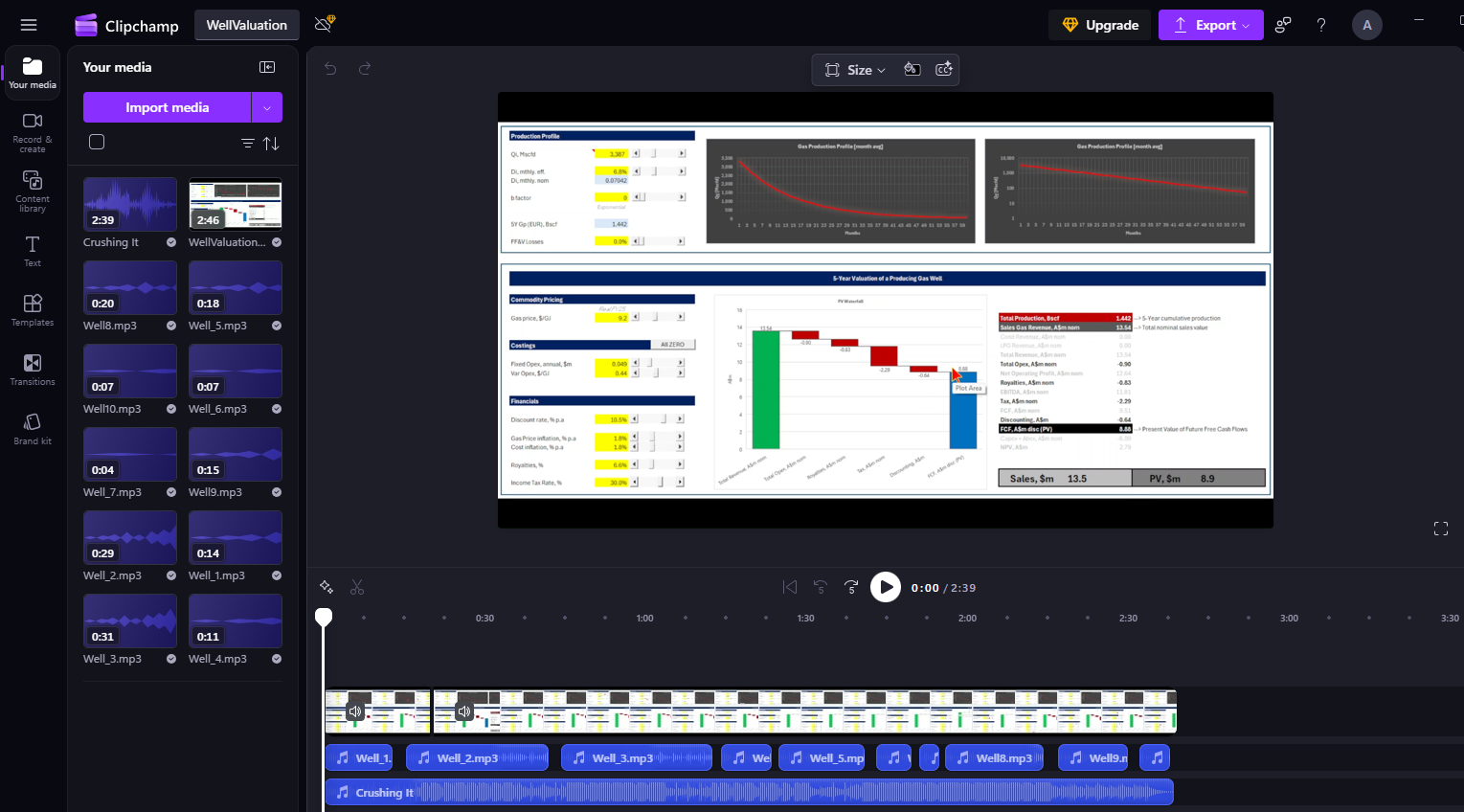
The result: a clean, narrated introduction that anyone can replicate with basic tools and a bit of structure.
You can watch the finished video here:
This project is a small example of how AI and no-code tools are democratizing content creation.
With ChatGPT, ElevenLabs, Clipchamp, and OBS, all easily available, you can now produce professional, narrated explainer videos without special equipment or a production team.
If you’ve been thinking of showcasing your own work, portfolio, or project walkthrough, this is the perfect workflow to start with.
Explore a curated collection of valuable resources in our Store, both free and paid, all designed to help you upskill.
Alan Mourgues is a reservoir engineering consultant with 20+ years of international experience. He is the founder of CrowdField, a hub for subsurface professionals to explore practical tools, workflows, and new ways of working. Through CrowdField, he shares applied approaches, experiments with AI and automation, and surfaces real problems and solutions that translate into practical, usable outcomes.